1
2
3
4
5
6
7
8
9
10
11
12
13
14
15
16
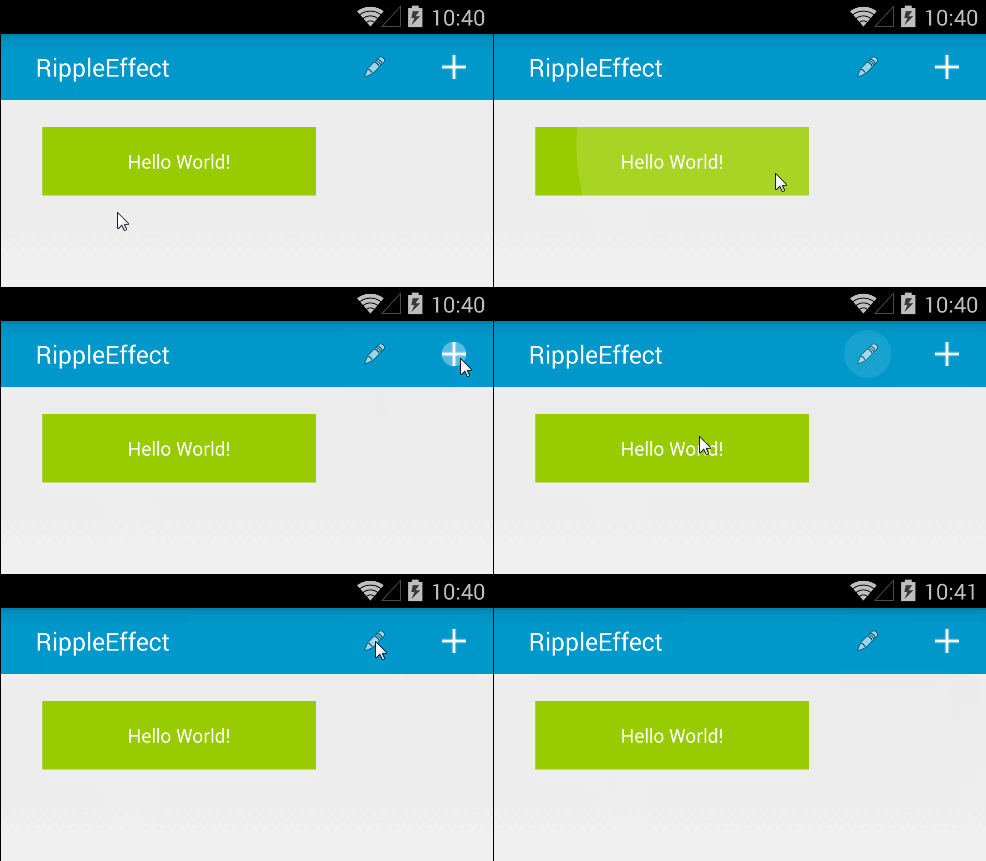
<com.andexert.library.RippleView
android:id="@+id/more"
ripple:rv_centered="true"
android:layout_width="120dp"
android:layout_height="60dp"
android:layout_margin="5dp">

<ImageView
android:layout_width="120dp"
android:layout_height="60dp"
android:layout_centerInParent="true"
android:background="@android:color/holo_blue_light"
android:padding="10dp"
android:src="@android:drawable/ic_menu_edit" />

</com.andexert.library.RippleView>

定制属性

  • app:rv_alpha:波纹的透明度,integer类型,默认为90,范围0-255
  • app:rv_framerate:波纹放大过程中的步进,integer类型,默认10
  • app:rv_rippleDuration:波纹动画的间隔,integer类型,默认400
  • app:paddingStart:波纹其实padding
  • app:paddingEnd:波纹结束padding
  • app:rv_color:波纹的颜色,color类型,默认是白色
  • app:rv_centered:是否在控件的最中间,boolean类型,默认false
  • app:rv_type:波纹类型,enum类型(simpleRipple,doubleRipple,rectangle),默认simpleRipple
  • app:rv_zoom:是否开启放大动画,boolean类型,默认false
  • app:rv_zoomDuration:放大动画的时间,integer类型,默认150
  • app:rv_zoomScale:放大动画,integer类型,默认1.03

提示


创建代码

1
2
3
4
5
6
7
8
9
10
11
12
13
14
15
16
17
18
19
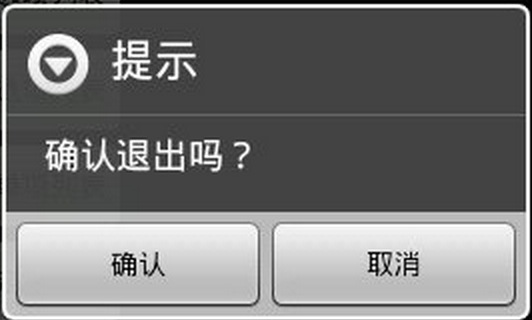
protected void dialog(){
AlertDialog.Builder builder = new Builder(mContext);
builder.setMessage("确定退出么?");
builder.setTitle("提示");
builder.setPostiveButton("确认",new OnClickListener(){
@Override
public void onClick(DialogInterface dialog,int which) {
dilog.dismiss();
//
}
});
builder.setNegativeButton("取消",new OnClickListner(){
@Override
public void onClick(DialogInterface dialog,int which){
dialog.dismiss();
}
});
builder.create().show();
}

三个按钮

1
2
3
4
5
6
7
8
9
10
11
12
13
14
15
16
17
18
19
20
21
22
23
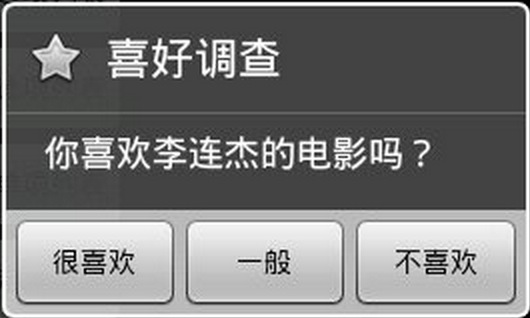
Dialog dialog = new AlertDialog.Builder(this).setIcon(
   android.R.drawable.btn_star).setTitle("喜好调查").setMessage(
   "你喜欢李连杰的电影吗?").setPositiveButton("很喜欢",
   new OnClickListener() {
   @Override
   public void onClick(DialogInterface dialog, int which) {
   Toast.makeText(Main.this, "我很喜欢他的电影。",
   Toast.LENGTH_LONG).show();
   }
   }).setNegativeButton("不喜欢", new OnClickListener() {
   @Override
   public void onClick(DialogInterface dialog, int which) {
   Toast.makeText(Main.this, "我不喜欢他的电影。", Toast.LENGTH_LONG)
   .show();
   }
   }).setNeutralButton("一般", new OnClickListener() {
   @Override
   public void onClick(DialogInterface dialog, int which) {
   Toast.makeText(Main.this, "谈不上喜欢不喜欢。", Toast.LENGTH_LONG)
   .show();
   }
   }).create();
   dialog.show();

简单的自定View

1
2
3
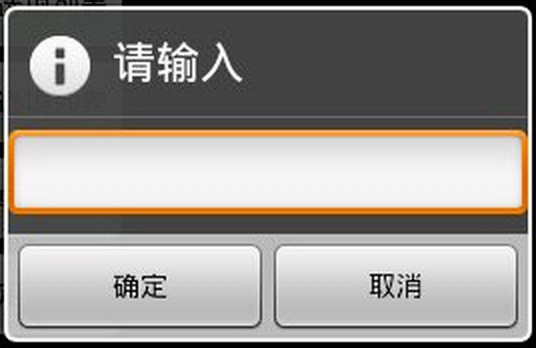
new AlerDialog.Builder(mContext).setTitle("请输入").setIcon(android.R.drawable.ic_dialog_info)
.setView(new EditText(this)).setPositiveButton("确定",null)
.setNegativeButton("取消",null).show()

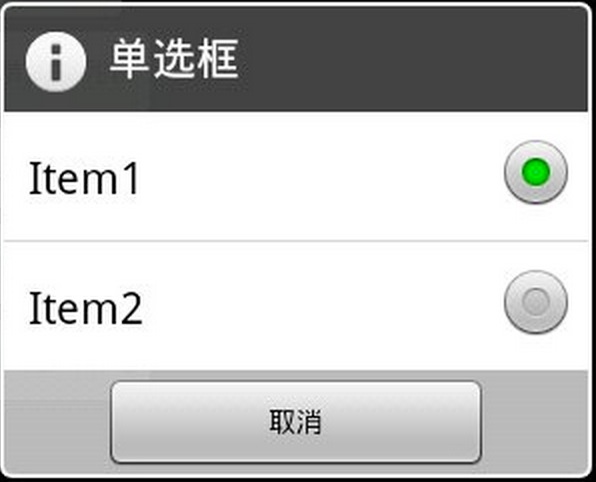
消息内容一组单选框

1
2
3
4
5
new AlerDialog.Builder(mContext).setTitle("单选框")
.setMultiChoiceItems(
new String[]{"Item1","Item2"},null,null)
.setPositiveButton("确定",null)
.setNegativeButton("取消",null).show();

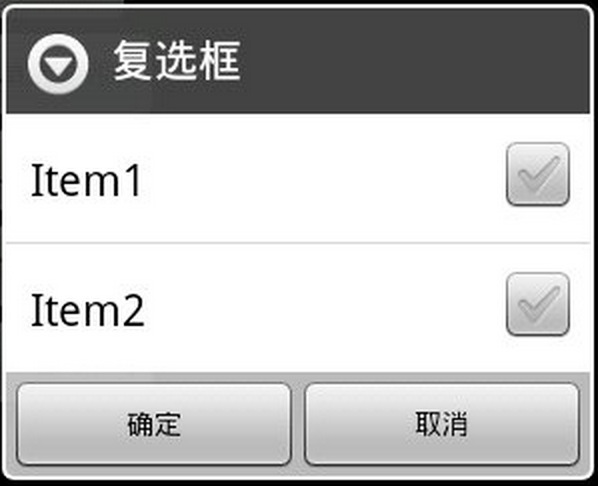
消息内容是一组多选框

1
2
3
4
5
6
7
8
new AlerDialog.Builder(mContext).setTitle("多选框")
.setIcon(android.R.drawable.ic_dialog_info)
.setSingleChoiceItems(new String[]{"Item1","Item2"},0
new DialogInterface.OnClickListener(){
public void onClick(DialogInterface dialog,int which){
dialog.dismiss();
}
}).setNegativeButton("取消",null).show();

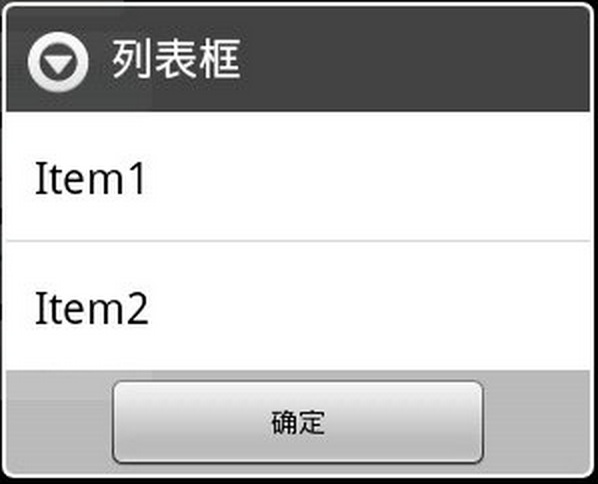
信息内容是一组简单列表项


``java
new AlertDialog.Builder(this).setTitle(“列表框”).setItems(
   new String[] { “Item1”, “Item2” }, null).setNegativeButton(
   “确定”, null).show();

1
2
3
4
5
6
7
8
9
10
11
12
13
14
## 信息内容自定义布局
![](/img/14110607.png)
```xml
<?xml version="1.0" encoding="utf-8"?>
  <LinearLayout xmlns:android="http://schemas.android.com/apk/res/android"
   android:layout_height="wrap_content" android:layout_width="wrap_content"
   android:background="# ffffffff" android:orientation="horizontal"
   android:id="@+id/dialog">
   <TextView android:layout_height="wrap_content"
   android:layout_width="wrap_content"
   android:id="@+id/tvname" android:text="姓名:" />
   <EditText android:layout_height="wrap_content"
   android:layout_width="wrap_content" android:id="@+id/etname" android:minWidth="100dip"/>
</LinearLayout>
1
2
3
4
5
6
LayoutInflater inflater = getLayoutInflater();
   View layout = inflater.inflate(R.layout.dialog,
   (ViewGroup) findViewById(R.id.dialog));
   new AlertDialog.Builder(this).setTitle("自定义布局").setView(layout)
   .setPositiveButton("确定", null)
   .setNegativeButton("取消", null).show();

iPviking:在线黑客攻击可视化地图有一个由挪威公司对全世界互联网数据流攻击进行的实时检测可视化数据图,用户可以直观的看到世界各地的攻击数据,这个检测平台可以监测到网络上的各种攻击方式,来源于哪个国家等详细数据。

Read More

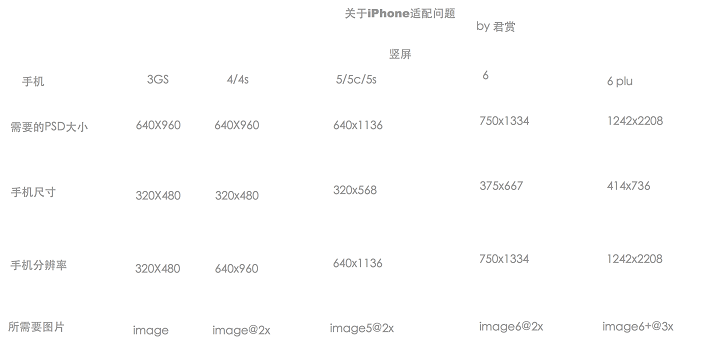
显示效果

  • 3GS
  • iPhone 4/4s
  • iPhone 5/5s
  • iPhone 6
  • iPhone 6 Plus

元素素材

真机效果

  • iPhone 5/5s
  • iPhone 6
  • iPhone 6 Plus

Notification是应用程序提醒用户发生某些事件的一种方式,包括以下功能:

  1. 显示状态栏图标
  2. 灯光/LED闪烁
  3. 让手机振动
  4. 发出声音提醒(铃声、Media Store中的音频)
  5. 在通知托盘中显示额外的信息
  6. 在通知栏中使用交互式操作来广播Intent

Notification Manager

NotificationManager是用来处理Notification的系统Service,使用getSystemService方法可以获得对它的引用

1
NotificationManager notificationManager = (NotificationManager)gerSystemService(Context.NOTIFICATION_SERVICE);

通过NotificationManager可以触发新的Notification,修改现有的Notification删除不需要的Notifition

创建Notification

向用户传递信息的方式:

  1. 状态栏图标
  2. 声音、闪光灯和振动
  3. 在展开的通知托盘中显示详细信息

创建Notification和配置状态栏图标

1
Notification notification = new Notification(R.drawable.icon,"Notification",System.currentTimeMills());	// 指定图标,文本,时间戳

还可以设置Notification对象的number属性来显示一个状态栏显示一个状态图标所表示的时间数量

使用默认的Notification声音、闪灯和振动

向Notification添加声音、闪灯和振动效果的可以使用默认的设置:

  • Notification.DEFAULT_LIGHTS 灯
  • Notification.DEFAULT_SOUND 声音
  • Notification.DEFAULT_VIBRATE 振动
1
notification.defaults = Notification.DEFAULT_SOUND | Notification.DEFAULT_VIBRATE;

可以使用Notification.DEFAULT_ALL开启全部

发出声音

使用sound属性向Notification分配一个新的声音并指定音频文件的URI

1
2
Uri ringURI = RingtoneManager.getDefaultUri(RingtoneManager.TYPE_NOTIFICATION);
notification.sound = ringURI;

设备振动

首先需要设置权限

1
<user-permission android:name="android.permisson.VIBRATE" />

设置振动方式时,可以向Notification的vibrate属性分配一个long[]类型数组来设置振动和暂停时间的交替

1
notification.vibrate = new long[] {1000,1000,1000,1000}

闪屏

Notification还可以设置设备的LED的颜色和闪烁频率

1
2
3
4
notification.ledARGB = Color.RED;	//设置LED颜色
notification.ledOffMS = 0; //设置LED闪烁的频率
notification.ledOnMS = 1;
notification.flags = notification.flags | Notification.FLAG_SHOW_FIGHTS; // 要使用LED必须添加flags属性

Notification Builder

Api 11(Android 3.0)引入的Api,简化了Notification的配置

1
2
3
4
5
6
7
8
9
10
11
12
13
Notification.Builder builder = new Notification.Builder(mContext);
builer.setSmallIcon(R.drawable.icon);
.setTicker("Notification")
.setWhen(System.currrntTimeMillis())
.setDefaults(Notification.DEFAULT_SOND |
Notification.DEFAULT_VIBRATE)
.setSound(
RingtoneManager.getDefaultUri(
RingtoneManager.TYPE_NOTIFICATION))
.setVibrate(new long[] {1000,1000,1000,1000,1000,1000})
.setLights(Color.RED,0,1);

Notication notification = builder.getNotification();

设置和自定义通知托盘UI

配置Notification的外观主要方法有

  • 设置setLatesEventInfo方法更新标准的通知托盘所显示的详细信息
  • 设置Notification Builder创建和控制众多可选通知托盘UI中的一个
  • 设置contentView和contentIntent属性,以便使用Remote View对象展开的状态显示分配一个自定义的UI
  • 从Api 11(Android 3.0)开始,描述自定义UI的Remote Views对象可以为每个View分配一个Broadcast Intent,以使他们完全可交互

标准的Notification UI


onSaveInstanceState

当Activity可能会被销毁时,该Activity的onSaveInstanceState会被执行,除非Activity是主动销毁的。onSaveInstanceState的调用遵循一个规则,即未经允许,则onSaveInstanceState会被系统调用,这是一个保留数据的机会.
通常onSaveInstanceState被调用的情况有:

  1. 当用户按下HOME键时
  2. 长按HOME键,选择运行其他的程序时
  3. 按下电源键(关闭屏幕显示)时
  4. 从Activity启动新的Activity时
  5. 屏幕切换时
    屏幕切换时,系统会销毁Activity再自动创建Activity,onSaveInstance一定会被执行

onRestoreInstanceState

onRestoreInstanceState会在Activity被系统销毁后,被重建时调用,在Activity的onStart之后调用

1
2
3
4
5
6
7
8
9
protected void onSaveInstanceState(Bundle savedInstanceState) {
super.onSaveInstanceState(icicle);
savedInstanceState.putLong("param", value);
}
public void onCreate(Bundle savedInstanceState) {
if (savedInstanceState != null){
value = savedInstanceState.getLong("param");
}
}

AutoCompleteTextView工作流程依赖Adapter和Filter,一个处理视图(BaseAdapter),一个是数据过滤(Filterable)

Filter有两个重要方法:

  1. protected FilterResults performFiltering(CharSequence prefix)
    定制过滤策略,根据输入的prefix对数据进行过滤,并组装成FilterResults结果返回
  2. protected void publisgResults(CharSequence constraint,FilterResults results)
    发布结果,把上面方法的结果按照一定的要求处理后,通知Adapter进行数据视图刷新