Cocos2d-x坐标系和Open GL坐标系相同,都是起源于笛卡尔坐标系。

笛卡尔坐标系

笛卡尔坐标系中定义右手系原点在左下角,x向右,y向上,z向外

屏幕坐标系和Cocos2d坐标系

iOS、Android、Windows Phone在开发应用时使用的是标准屏幕坐标系,原点为屏幕左上角,x向右,y向下。

世界坐标系(World Coordinate)和本地坐标系(Node Local)

世界坐标系也叫绝对坐标系,是游戏开发中建立的概念,因此,“世界”指游戏世界。Cocos2d中的元素是由父子关系的层级结构,我们通过Node的setPosition设定元素的位置使用的就是相对与父类节点的本地坐标系而非世界坐标系。

本地坐标系也叫相对坐标系,是和节点相关联的坐标系。每个节点都有独立的坐标系,当节点移动或改变方向时,和该节点关联的坐标系将随之移动或改变方向。

锚点(Anchor Point)

  • Anchor Point的两个参数都在0~1之间。它们表示的并不是像素点,而是乘数因子。(0.5, 0.5)表示Anchor Point位于节点长度乘0.5和宽度乘0.5的地方,即节点的中心

  • 在Cocos2d-x中Layer的Anchor Point为默认值(0, 0),其他Node的默认值为(0.5, 0.5)。
    我们用以下代码为例,使用默认Anchor Point值,将红色层放在屏幕左下角,绿色层添加到红色层上:

1
2
3
4
auto red = LayerColor::create(Color4B(255,100,100,128),visibleSize.width/2,visibleSize.height/2);
auto green = LayerColor::create(Color4B(100,255,100,128),visibleSize.width/4,visibleSize.height/4);
red->addChild(greeen);
this->addChild(red,0);

我们用以下代码为例,将红色层的Anchor Point设为中点放在屏幕中央,绿色层添加到红色层上,绿色层锚点为右上角:

注:因为Layer比较特殊,它默认忽略锚点,所以要调用ignoreAnchorPointForPosition()接口来改变锚点,关于ignoreAnchorPointForPosition()接口的使用说明,我们将在后面详细讲解。

1
2
3
4
5
6
7
8
9
10
11
auto red = LayerColor::create(Color4B(255, 100, 100, 128), visibleSize.width/2, visibleSize.height/2);
red->ignoreAnchorPointForPosition(false);
red->setAnchorPoint(Point(0.5, 0.5));
red->setPosition(Point(visibleSize.width/2 + origin.x, visibleSize.height/2 + origin.y));

auto green = LayerColor::create(Color4B(100, 255, 100, 128), visibleSize.width/4, visibleSize.height/4);
green->ignoreAnchorPointForPosition(false);
green->setAnchorPoint(Point(1, 1));
red->addChild(green);

this->addChild(red, 0);

忽略锚点(Ignore Anchor Point)

Ignore Anchor Point全称是ignoreAnchorPointForPosition,作用是将锚点固定在一个地方。

如果设置其值为true,则图片资源的Anchor Pont固定为左下角,否则即为所设置的位置。

我们用以下代码为例,将两个层的ignoreAnchorPointForPosition设为true,并将绿色的层添加到红色的层上:

1
2
3
4
5
6
7
8
9
10
auto red = LayerColor::create(Color4B(255, 100, 100, 128), visibleSize.width/2, visibleSize.height/2);
red->ignoreAnchorPointForPosition(true);
red->setPosition(Point(visibleSize.width/2 + origin.x, visibleSize.height/2 + origin.y));

auto green = LayerColor::create(Color4B(100, 255, 100, 128), visibleSize.width/4, visibleSize.height/4);
green->ignoreAnchorPointForPosition(true);

red->addChild(green);

this->addChild(red, 0);

VertexZ,PositionZ和zOrder

  • VerextZ是OpenGL坐标系中的Z值
  • PositionZ是Cocos2d-x坐标系中Z值
  • zOrder是Cocos2d-x本地坐标系中Z值
    在实际开发中我们只需关注zOrder。

可以通过setPositionZ接口来设置PositionZ。

以下是setPositionZ接口的说明:

1
Sets the 'z' coordinate in the position. It is the OpenGL Z vertex value.

即PositionZ的值即为opengl的z值VertexZ。同样节点的PositionZ也是决定了该节点的渲染顺序,值越大,但是与zOrder不同的区别在于,PositionZ是全局渲染顺序即在根节点上的渲染顺序,而zOrder则是局部渲染顺序,即该节点在其父节点上的渲染顺序,与Node的层级有关。用以下事例来说明:

1
2
3
4
5
6
7
8
9
10
11
auto red = LayerColor::create(Color4B(255, 100, 100, 255), visibleSize.width/2, visibleSize.height/2);
red->ignoreAnchorPointForPosition(false);
red->setPosition(Point(visibleSize.width / 2, visibleSize.height / 2));

auto green = LayerColor::create(Color4B(100, 255, 100, 255), visibleSize.width/4, visibleSize.height/4);
green->ignoreAnchorPointForPosition(false);
green->setPosition(Point(visibleSize.width / 2, visibleSize.height / 2 - 100));
red->setPositionZ(1);
green->setPositionZ(0);
this->addChild(red, 0);
this->addChild(green, 1);

触摸点(Touch position)

在处理触摸事件时需要重写以下四个函数:

1
2
3
4
virtual bool onTouchBegan(Touch *touch,Event *event);
virtual void onTouchEnded(Touch *touch,Event *event);
virtual void onTouchCancel(Touch *touch,Event *event);
virtual void onTouchMoved(Touch *touch,Event *event);

在函数中获取到touch,在设计游戏逻辑时需要用到触摸点在Cocos2d坐标系中的位置,就需要将touch的坐标转换成OpenGL坐标系中的点坐标。

Touch position是屏幕坐标系中的点,OpenGL postion是cocos2d-x用到OpenGL坐标系上的点坐标,通常我们在开发中会使用两个接口getLocation()和getLocationInView()来进行相应坐标转换工作。

在开发中一班使用getLocation()获取触摸点的GL坐标,而getLocationo()内部实现是通过Director::getInstance()->convertToGL(_point);返回GL坐标。

此外,关于世界坐标系和本地坐标系的互相转换,在Node中定义了以下四个常用的坐标转换的相关方法。

1
2
3
4
5
6
7
8
// 把基于当前节点的本地坐标系下的坐标转换到世界坐标系中
Point convertToNodeSpace(const Point& worldPoint) const;
// 把世界坐标转换到当前节点的本地坐标系中
Point convertToWorldSpace(const Point& nodePoint) const;
// 基于Anchor Point把基于当前节点的本地坐标系下的坐标转换到
Point convertToNodeSpaceAR(const Point& worldPoint) const;
// 基于Anchor Point把世界坐标转换到当前节点的本地坐标系中
Point convertToWorldSpaceAr(const Point& nodePoint) const;

例子:

1
2
3
4
5
6
7
8
9
10
11
12
13
14
15
16
auto *sprite1 = Sprite::create("HelloWorld.png");
sprite1->setPosistion(ccp(20,40));
sprite1->setAnchorPoint(ccp(0,0));
this->addChild(sprite1);// 此时添加到的是世界坐标系,也就是OpenGL坐标系

auto *sprite2 = Sprite::create("HelloWorld");
sprite2->setPosition(ccp(-5,-20));
sprite2->setAnchorPoint(ccp(1,1));
this->addChild(sprite2);// 此时添加到的是世界坐标系,也就是OpenGL坐标系

//将sprite2这个节点的坐标ccp(5,-20)转换成sprite1节点下的本地坐标系统的位置坐标
Point point1 = sprite1->convertToNodeSpace(sprite1->getPosition());
Point point2 = sprite->convertToWorldSpce(sprite2->getPosition());
// 将sprite2这个节点的坐标ccp(5,-20)转换成sprite1节点下的世界坐标系统的位置坐标
log("postion = (%f,%f)",point1.x,point1.y);
log("postion = (%f,%f)",point2.x,point2.y);


其中:Point point1 = sprite1->convertToNodeSpace(sprite2->getPosition());

相当于sprite2这个节点添加到(实际没有添加,只是这样理解)sprite1这个节点上,那么就需要使用sprite1这个节点的节点坐标系统,这个节点的节点坐标系统的原点在(20,40),而sprite1的坐标是(-5,-20),那么经过变换之后,sprite1的坐标就是(-25,-60)。

其中:Point point2 = sprite1->convertToWorldSpace(sprite2->getPosition());

此时的变换是将sprite2的坐标转换到sprite1的世界坐标系下,而其中世界坐标系是没有变化的,始终都是和OpenGL等同,只不过sprite2在变换的时候将sprite1作为了”参照“而已。所以变换之后sprite2的坐标为:(15,20)。


AFNetworking是一个非常流行的网络库,适用于iOS以及Mac OS X,具有良好的架构,丰富的api,以及模块化化构建方式,使得使用起来非常轻松。

使用CocoaPods安装

Podfile

1
2
platform :ios, '7.0'
pod "AFNetworking", "~> 2.0"

环境要求

Xcode 5、iOS 6.0及以上、Mac OS 10.8以上

用法

AFHTTPRequestOperationManager

AFHTTPRequestOperationManager封装了Web应用程式HTTP通信的功能,包括编辑请求、响应序列化、网络可达性监控和安全系,以及请求管理的常见模式。

GET请求

1
2
3
4
5
6
AFHTTPRequestOperationManager *manager = [AFHTTPRequestOperationManager manager];
[manager GET:@"http://example.com/resources.json" parameters:nil success:^(AFHTTPRequestOperation *operation, id responseObject) {
NSLog(@"JSON: %@", responseObject);
} failure:^(AFHTTPRequestOperation *operation, NSError *error) {
NSLog(@"Error: %@", error);
}];

POST请求

1
2
3
4
5
6
7
AFHTTPRequestOperationManager *manager = [AFHTTPRequestOperationManager manager];
NSDictionary *parameters = @{@"foo":@"bar"};
[manager GET:@"http://example.com/resources.json" parameters:nil success:^(AFHTTPRequestOperation *operation, id responseObject) {
NSLog(@"JSON: %@", responseObject);
} failure:^(AFHTTPRequestOperation *operation, NSError *error) {
NSLog(@"Error: %@", error);
}];

POST多部分请求

1
2
3
4
5
6
7
8
9
10
AFHTTPRequestOperationManager *manager = [AFHTTPRequestOperationManager manager];
NSDictionary *parameters = @{@"foo":@"bar"};
NSURL *filePath = [NSURL fileURLWithPath:@"file://path/to/image.png"];
[manager POST:@"http://example.com/resources.json" parameters:parametes construtingBodyWithBlock:^(id<AFMultipartFormData> formData){
[formData appendPartWithFileUrl:filePath name:@"image" error:nil];
} success:^(AFHTTPRequestOperation *operation,id responseObject){
NSLog(@"Success:%@",responseObject);
}failure:^(AFHTTPRequestOperation *operation,NSError *error)){
NSLog(@"Error:%@",error);
}];

AFURLSessionManager

AFURLSessionManager根据指定的NSURLSessionConfiguration对象创建、管理NSURLSession,实现了<NSURLSessionTaskDelegate><NSURLSessionDataDelegate><NSURLSessionDownloadDelegate><NSURLSessionDelegate>委托。

创建下载任务

1
2
3
4
5
6
7
8
9
10
11
12
13
NSURLSessionConfiguration *configuration = [NSURLSessionConfiguration defaultSessionConfiguration];
AFURLSessionManager *manager = [[AFURLSessionManager alloc] initWithSessionConfiguration:configuration];

NSURL *URL = [NSURL URLWithString:@"http://example.com/download.zip"];
NSURLRequest *request = [NSURLRequest requestWithURL:URL];

NSURLSessionDownloadTask *downloadTask = [manager downloadTaskWithRequest:request progress:nil destination:^NSURL *(NSURL *targetPath, NSURLResponse *response) {
NSURL *documentsDirectoryPath = [NSURL fileURLWithPath:[NSSearchPathForDirectoriesInDomains(NSDocumentDirectory, NSUserDomainMask, YES) firstObject]];
return [documentsDirectoryPath URLByAppendingPathComponent:[response suggestedFilename]];
} completionHandler:^(NSURLResponse *response, NSURL *filePath, NSError *error) {
NSLog(@"File downloaded to: %@", filePath);
}];
[downloadTask resume];

创建上传任务

1
2
3
4
5
6
7
8
9
10
11
12
13
14
15
NSURLSessionConfiguration *configuration = [NSURLSessionConfiguration defaultSessionConfiguration];
AFURLSessionManager *manager = [[AFURLSessionManager alloc] initWithSessionConfiguration:configuration];

NSURL *URL = [NSURL URLWithString:@"http://example.com/upload"];
NSURLRequest *request = [NSURLRequest requestWithURL:URL];

NSURL *filePath = [NSURL fileURLWithPath:@"file://path/to/image.png"];
NSURLSessionUploadTask *uploadTask = [manager uploadTaskWithRequest:request fromFile:filePath progress:nil completionHandler:^(NSURLResponse *response, id responseObject, NSError *error) {
if (error) {
NSLog(@"Error: %@", error);
} else {
NSLog(@"Success: %@ %@", response, responseObject);
}
}];
[uploadTask resume];

创建上传任务多任务请求

1
2
3
4
5
6
7
8
9
10
11
12
13
14
NSMutableURLRequest *requst = [[AFHTTPRequestSerializer serializer] multipartFormRequestWithMethod:@"POST" URLString:@"http://example.com/upload" parameters:nil constructingBodyWithBlock:^(id<AFMultipartFormData> formData) {
[formData appendPartWithFileURL:[NSURL fileURLWithPath:@"file://path/to/image.jpg"] name:@"file" fileName:@"filename.jpg" mimeType:@"image/jpeg" error:nil];
}error:nil];

AFURLSessionManager *manager = [[AFURLSessionManager alloc] initWithSessionConfigguration:[NSURLSessionConfiguration defaultSessionConfiguration]];
NSProgress *progress = nil;
NSURLSessionUploadTask *uploadTask = [Manager uploadTaskWithStreamedRequest:request progress:&progress completionHandler:^(NSURLResponse *response,id responseObject,NSError *error){
if(error){
NSLog(@"Error:%@",error);
}else{
NSLog(@"%@,%@",response,responseObject);
}
}];
[uploadTask resume];

创建数据任务

1
2
3
4
5
6
7
8
9
10
11
12
13
14
15
NSURLSessionConfiguration *configuration = [NSURLSessionConfiguration defaultSessionConfiguration];
AFURLSessionManager *manager = [[AFURLSessionManager alloc] initWithSessionConfiguration:configuration];

NSURL *URL = [NSURL URLWithString:@"http://example.com/upload"];
NSURLRequest *request = [NSURLRequest requestWithURL:URL];

NSURLSessionDataTask *dataTask = [manager dataTaskWithRequest:request completionHandler:^(NSURLResponse *response, id responseObject, NSError *error) {
if (error) {
NSLog(@"Error: %@", error);
} else {
NSLog(@"%@ %@", response, responseObject);
}
}];
[dataTask resume];
[ dataTask 简历];

请求序列化

创建序列化URL字符串

1
2
NSString * URLString = @"http://example.com";
NSDictionary * parmeters = @{@"foo":@"bar",@"baz":@[@1,@2,@3]};

查询参数列表

1
[[AFHTTPRequestSerializer serializer] requestWithMethod:@"POST" URLString:URLString parameters:parameters];
	POST http://example.com/
Content-Type: application/x-www-form-urlencoded
foo=bar&baz[]=1&baz[]=2&baz[]=3

JSON参数

1
[[AFJSONRequestSerializer serializer] requestWithMethod:@"POST" URLString:URLString parameters:parameters];
	POST http://example.com/
Content-Type: application/json

{"foo": "bar", "baz": [1,2,3]}

网络可达性管理

AFNetworkReachabilityManager监控网络的可达性。

1
2
3
[[AFNetworkReachabilityManager sharedManager] setReachabilityStatusChangeBlock:^(AFNetworkReachabilityStatus status) {
NSLog(@"Reachability: %@", AFStringFromNetworkReachabilityStatus(status));
}];

可达URL的主机

1
2
3
4
5
6
7
8
9
10
11
12
13
14
15
16
NSURL *baseURL = [NSURL URLWithString:@"http://example.com/"];
AFHTTPRequestOperationManager *manager = [[AFHTTPRequestOperationManager alloc] initWithBaseURL:baseURL];

NSOperationQueue *operationQueue = manager.operationQueue;
[manager.reachabilityManager setReachabilityStatusChangeBlock:^(AFNetworkReachabilityStatus status) {
switch (status) {
case AFNetworkReachabilityStatusReachableViaWWAN:
case AFNetworkReachabilityStatusReachableViaWiFi:
[operationQueue setSuspended:NO];
break;
case AFNetworkReachabilityStatusNotReachable:
default:
[operationQueue setSuspended:YES];
break;
}
}];

这个类只有三个类方法+ (void) resetCache+ (void) setObject:(NSData *)data forKey:(NSString *)key+ (id) objectForKey:(NSString *)key
resetCache:清空当前的缓存
setObject:(NSData *)data forKey:(NSString *)key:根据Key保存data到缓存中
objectForKey:(NSString *)key:根据Key从缓存中获取data

方法实现

首先我们需要实现一个方法,该方法用于返回缓存的完整目录
核心的代码为NSArray* paths = NSSearchPathForDirectoriesInDomains(NSCachesDirectory, NSUserDomainMask, YES);用于获取沙盒内的缓存目录

1
2
3
4
5
6
7
+ (NSString *) cacheDirectory {
NSArray* paths = NSSearchPathForDirectoriesInDomains(NSCachesDirectory, NSUserDomainMask, YES);
NSString* cacheDirectory = [paths objectAtIndex:0];
// 添加目录后缀
cacheDirectory = [cacheDirectory stringByAppendingPathComponent:@"ZTCaches"];
return cacheDirectory;
}

清空缓存也相对容易,只要把该目录的文件删除即可

1
2
3
+ (void) resetCache {
[[NSFileManager defaultManager] removeItemAtPath:[ZTCache cacheDirectory] error:nil];
}

根据Key将data存入缓存

1
2
3
4
5
6
7
8
9
10
11
12
13
14
15
16
17
+ (void) setObject:(NSData *)data forKey:(NSString *)key{
NSFileManager *fileManager = [NSFileManager defaultManager];
NSString *filename = [self.cacheDirectory stringByAppendingPathComponent:key];
BOOL isDir = YES;
// 如果缓存目录不存在需要创建缓存目录
if (![fileManager fileExistsAtPath:self.cacheDirectory isDirectory:&isDir]) {
// 创建目录
[fileManager createDirectoryAtPath:self.cacheDirectory withIntermediateDirectories:NO attributes:nil error:nil];
}
NSError *error;
@try {
[data writeToFile:filename options:NSDataWritingAtomic error:&error];
}
@catch (NSException *exception) {
//
}
}

根据Key从缓存中获取data

1
2
3
4
5
6
7
8
9
10
11
12
13
14
15
16
17
18
19
+ (NSData *) objectForKey:(NSString *)key{
NSFileManager* fileManager = [NSFileManager defaultManager];
// 根据目录和Key创建一个完整的fileName
NSString* filename = [self.cacheDirectory stringByAppendingPathComponent:key];
// 判断文件是否存在
if ([fileManager fileExistsAtPath:filename]) {
// 获取文件属性Dic,并取其中的最后修改时间属性
NSDate *modificationDate = [[fileManager attributesOfItemAtPath:filename error:nil] objectForKey:NSFileModificationDate];
// 如果最后修改时间与现在时间大于7天,删除文件
if ([modificationDate timeIntervalSinceNow] > cacheTime) {
[fileManager removeItemAtPath:filename error:nil];
}else{
// 从文件中读取data
NSData *data = [NSData dataWithContentsOfFile:filename];
return data;
}
}
return nil;
}

使用缓存类

根据实际需要,调用获取缓存,URL用MD5进行加工变为短连接

1
2
3
4
5
6
7
8
9
10
11
12
13
14
15
16
17
18
19
20
21
- (void) loadImageFromURL:(NSString*)URL {
NSURL *imageURL = [NSURL URLWithString:URL];
NSString *key = [URL MD5Hash];
NSData *data = [ZTCache objectForKey:key];
// 如果存在将data传入imageView,否则添加一个异步任务
if (data) {
UIImage *image = [UIImage imageWithData:data];
_imageView.image = image;
} else {
_imageView.image = [UIImage imageNamed:@"img_def"];
dispatch_queue_t queue = dispatch_get_global_queue(DISPATCH_QUEUE_PRIORITY_HIGH, 0ul);
dispatch_async(queue, ^{
NSData *data = [NSData dataWithContentsOfURL:imageURL];
[ZTCache setObject:data forKey:key];
UIImage *image = [UIImage imageWithData:data];
dispatch_sync(dispatch_get_main_queue(), ^{
_imageView.image = image;
});
});
}
}

String+MD5实现如下

1
2
3
4
5
6
7
8
9
10
11
12
13
14
15
16
17
18
19
20
21
- (NSString *) MD5Hash {

CC_MD5_CTX md5;
CC_MD5_Init (&md5);
CC_MD5_Update (&md5, [self UTF8String], (CC_LONG)[self length]);

unsigned char digest[CC_MD5_DIGEST_LENGTH];
CC_MD5_Final (digest, &md5);
NSString *s = [NSString stringWithFormat: @"%02x%02x%02x%02x%02x%02x%02x%02x%02x%02x%02x%02x%02x%02x%02x%02x",
digest[0], digest[1],
digest[2], digest[3],
digest[4], digest[5],
digest[6], digest[7],
digest[8], digest[9],
digest[10], digest[11],
digest[12], digest[13],
digest[14], digest[15]];

return s;

}

示例

查看已连接的设备

1
adb devices

会列出连接设备的ID,使用adb -s DEVICE_ID可以指定特定的设备

安装应用

使用install命令来安装apk,如果设备上已经安装了应用,可以使用可选参数-r重新进行安装并保留所有数据

1
adb install -r APK_FILE

卸载应用

1
adb uninstall PACKAGE_NAME

启动Activity

1
adb shell am strat PACKAGE_NAME/ACTIVITY_IN_PACKAGE

进入设备命令行

1
adb shell

截取屏幕

1
adb shell screencap -p | perl -pe 's/\x0D\x0A/\x0A/g' > screen.png

解锁屏幕

1
adb shell input keyevent 82

日志

用来在命令行中显示日志流

1
adb logcat

按标签过滤

1
adb logcat -s TAG_NAME1 TAH_NAME2

按优先级过滤

1
2
3
adb logcat "*:PRIORITY"
# example
adb logcat "*:W"

优先级设置如下:

  • V:Verbose(最低优先级)
  • D:Debug
  • I:Info
  • W:Warning
  • E:Error
  • F:Fatal
  • S:Slient(最高优先级,在这个级别上不会打印任何信息)

按优先级和标签名过滤

1
adb logcat -s TAG_NAME_1:PRIORITY TAG_NAME_2:PRIORITY

使用grep过滤

1
2
adb logcat | grep "SEARCH_TERM"
adb logcat | grep "SEARCH_TERM_1\|SEARCH_TERM_2"

清楚logcat缓冲区

1
adb logcat -c

什么是UICollectionView

UICollectionView是一种新的数据展示方式,简单来说可以把他理解成多列的UITableView。比如iBooks,一个虚拟的书架上放着各类图书,排列整齐,亦或者iPad的iOS6中的原生时钟中的各个时钟,也是UICollectionView的最简单的一个布局。

最简单的UICollectionView就是一个GirdView,可以以多列的方式来将数据进行展示,标准的UICollection包含三个部分:

  • Cells用于展示内容的主体,对于不同的cell可以指定不同尺寸和不同的内容
  • Supplementary Views追加视图,用来标记每个section的view
  • Decoration Views装饰视图,每个section的背景


实现一个简单的UICollectionView

和UITableView一样,UICollectionView同样采用datasource和delegate设计模式:datasource为View提供数据源,告诉View要实现什么及如何显示它们,delegate提供一些样式的小细节以及用户交互的相应。

UICollectionViewDataSource

    • (NSInteger)collectionView:(UICollectionView *)view numberOfItemsInSection:(NSInteger)section:section的数量
    • (NSInteger)collectionView:(UICollectionView *)collectionView numberOfItemsInSection:(NSInteger)section:某个section里有多少个item
    • (UICollectionViewCell *)collectionView:(UICollectionView *)collectionView cellForItemAtIndexPath:(NSIndexPath *)indexPath:指定显示什么样的cell

实现了以上三个委托方法,基本上就可以保证CollectionView工作正常,同时还通过了Supplementary View方法

    • (UICollectionReusableView *)collectionView:(UICollectionView *)collectionView viewForSupplementaryElementOfKind:(NSString *)kind atIndexPath:(NSIndexPath *)indexPath

用于重用

在UICollectionView中在请求数据源之前要注册CellView、SupplementaryView,可以通过以下方法进行注册
-registerClass:forCellWithReuseIdentifier:
-registerClass:forSupplementaryViewOfKind:withReuseIdentifier:
-registerNib:forCellWithReuseIdentifier:
-registerNib:forSupplementaryViewOfKind:withReuseIdentifier:

UICollectionViewDelegate

负责交互

  • cell的高亮
  • cell的选中状态
  • 可以支持长按后的菜单
    用户点击cell的时候,现在会按照以下流程向delegate进行询问:
    • collectionView:shouldHighlightItemAtIndexPath:是否应该高亮?
    • collectionView:didHighlightItemAtIndexPath:如果1回答是,那么高亮
    • collectionView:shouldSelectItemAtIndexPath:无论1结果如何,都询问是否可以被选中?
    • collectionView:didUnhighlightItemAtIndexPath:如果1回答是否,那么取消高亮
    • collectionView:didSelectItemAtIndexPath:如果3回答为是,那么选中cell

对应的高亮和选中状态分别由highlighted和selected两个属性表示。

关于cell

UICollectionViewCell相比UITableViewCell没有太多的花头,首先不存在格式各样的默认的style。UICollectionViewCell结构上相对比较简单,由下至上:

  1. cell本身作为容器View
  2. 一个大小自动适应整个cell的backgroundView,用于cell默认的背景
  3. selectedBackgroundView,是cell被选中时的背景
  4. contentView,自定义内容应被加载这个View上。

UICollectionViewLayout

负责各个cell、Supplementary View和Decoration Views进行组织,为了它们设定各自的属性,包括但不限于:位置、尺寸、透明度、层级关系、形状、等等…

  • Layout决定了UICollectionView是如何显示在界面上的。在展示之前,一般需要生成合适的UICollectionViewLayout子类对象,并将其赋予CollectionView的collectionViewLayout属性。

默认常用的Layout是UICollectionViewFlowLayout,是一个直线对齐的Layout。

  • itemSize,定义了每一个item的大小。通过设定itemSize可以全局改变所有cell的尺寸,如果想要对某个cell定制尺寸,可以使用-collectionView:layout:sizeForItemAtIndexPath:方法。
  • 间隔 指定每个item之间的间隔和每一行之间的间隔,和size类似,有全局属性,也可以对每一个item和每一个section做出设定:
    • @property (CGSize) minimumInteritemSpacing
    • @property (CGSize) minimumLineSpacing
    • -collectionView:layout:minimumInteritemSpacingForSectionAtIndex:
    • -collectionView:layout:minimumLineSpacingForSectionAtIndex:
  • 滚动方向 由属性scrollDirection确定scroll View的方向,将影响Flow Layout的基本方向和由header及footer确定的section之间的宽度
    • UICollectionViewScrollDirectionVertical
    • UICollectionViewScrollDirectionHorizontal
  • Header和Footer尺寸 分为全局和部分,需要注意根据滚动方向不同,header和footer的高和宽中只有一个和会起作用,垂直滚动时section间宽度为该迟钝的高,而水平滚动时为宽度起作用
    • @property (CGSize) headerReferenceSize
    • @property (CGSize) footerReferenceSize
    • -collectionView:layout:referenceSizeForHeaderInSection:
    • -collectionView:layout:referenceSizeForFooterInSection:
  • 缩进
    • @property UIEdgeInsets sectionInset;
    • -collectionView:layout:insetForSectionAtIndex:

自定义UICollectionViewLayout

总结
一个UICollectionView的实现包括两个必要部分:UICollectionViewDataSource和UICollectionViewLayout,和一个交互部分:UICollectionViewDelegate。而Apple给出的UICollectionViewFlowLayout已经是一个很强力的layout方案了。

UICollectionViewLayoutAttributes

property列表:

  • @property (nonatomic) CGRect frame
  • @property (nonatomic) CGPoint center
  • @property (nonatomic) CGSize size
  • @property (nonatomic) CATransform3D transform3D
  • @property (nonatomic) CGFloat alpha
  • @property (nonatomic) NSInteger zIndex
  • @property (nonatomic, getter=isHidden) BOOL hidden

UICollectionViewLayoutAttributes的实例中包含了诸如边框,中心点,大小,形状,透明度,层次关系和是否隐藏等信息。当UICollectionView在获取布局时将针对每一个indexPath的部件(包括cell,追加视图和装饰视图),向其上的UICollectionViewLayout实例询问该部件的布局信息。这个布局信息,就以UICollectionViewLayoutAttributes的实例的方式给出。

UICollectionViewLayout

UICollectionViewLayout的功能为向UICollectionView提供布局信息,不仅包括cell的布局信息,也包括追加视图和装饰视图的布局信息。实现一个自定义layou的常规做法是继承UICollectionViewLayout类,然后重载下列方法。

    • (CGSize)collectioonViewContentSize
      • 返回collctionView的内容尺寸
    • (NSArray *)layoutAttributesForElementsInRect:(CGRect)rect
      • 返回rect中的所有的元素的布局属性
      • 返回的包括UICollectionViewLayoutAttributes的NSArray
      • UICollctionViewLayoutAttributes可以是cell,追加视图或装饰视图的信息,通过不同的UICollectionViewLayoutAttributes初始化方法可以得到不同类型的UICollctionViewLayoutAttributes
        • ayoutAttributesForCellWithIndexPath:
        • layoutAttributesForSupplementaryViewOfKind:withIndexPath:
        • layoutAttributesForDecorationViewOfKind:withIndexPath:
    • (UICollectionViewLayoutAttributes *)layoutAttributesForItemAtIndexPath:(NSIndexPath *)indexPath
      • 返回对应indexPath位置的cell布局属性
    • (UICollectionViewLayoutAttributes *)layoutAttributesForDecorationViewOfKind:(NSString *)decorationViewKind atIndexPath:(NSIndexPath *)indexPath
      • 返回对应indexPath位置的追加视图的布局属性,如果没有追加视图可以不重载
    • (UICollectionViewLayoutAttributes *)layoutAttributesForDecorationViewOfKind:(NSString *)decorationViewKind atIndexPath:(NSIndexPath *)indexPath
      • 返回对应于indexPath的位置的装饰视图的布局属性,如果没有装饰视图可不重载
    • (BOOL)shouldInvalidateLayoutForBoundsChange:(CGRect)newBounds
      • 当边界发生改变时,是否应该刷新布局。

在初始化一个UICollectionViewLayout实例后,会有一系列的准备方法被自动调用,以保证layout实例的正确

  1. -(void)prepareLayout,默认下该方法是每都不做,但是在自己的子类实现中,一般在该方法中设定一些必要的layout的结构和初始需要的参数等。
  2. -(CGSize)collectionViewContentSize,以确定collection应该占据的尺寸,注意这里的尺寸不是指可使部分的尺寸,而是所有内容所占的尺寸。
  3. -(NSArray *)layoutAttributesForElementsInRect:(Rect)rect被调用,初始的layout外观将由该方法返回的UICollctionViewLayoutAttributes来决定。

另外,在需要更新layout时,需要给当前layout发送 -invalidateLayout,该消息会立即返回,并且预约在下一个loop的时候刷新当前layout。在-invalidateLayout后的下一个collectionView的刷新loop中,又会从prepareLayout开始,依次再调用-collectionViewContentSize和-layoutAttributesForElementsInRect来生成更新后的布局。

LineLayout——对于个别UICollectionViewLayoutAttributes的调整

1
2
3
4
5
6
7
8
9
10
11
12
13
14
15
16
17
18
19
20
21
22
23
24
25
26
27
28
29
30
31
32
33
34
35
36
37
38
39
40
41
42
43
44
45
46
47
48
49
50
51
52
53
54
55
56
57
58
59
60
61
62
63
64
65
66
67
68
69
70
71
// LinrLayout.m
# import "LineLayout.h"


# define ITEM_SIZE 200.0
# define ACTIVE_DISTANCE 200
# define ZOOM_FACTOR 0.4

@implementation LineLayout

-(id)init
{
self = [super init];
if (self) {
self.itemSize = CGSizeMake(ITEM_SIZE, ITEM_SIZE);
self.scrollDirection = UICollectionViewScrollDirectionHorizontal;
// 确定了缩进,此处为上方、下方各缩进200
self.sectionInset = UIEdgeInsetsMake(ITEM_SIZE, ITEM_SIZE/2, ITEM_SIZE, ITEM_SIZE/2);
// 每个item在水平方向的最小间距
self.minimumLineSpacing = ITEM_SIZE/4;

}
return self;
}
// 边界改变时是否重新排版
- (BOOL)shouldInvalidateLayoutForBoundsChange:(CGRect)oldBounds
{
return YES;
}
// 初始的layout外观将由该方法返回的UICollctionViewLayoutAttributes来决定
-(NSArray*)layoutAttributesForElementsInRect:(CGRect)rect
{
NSArray* array = [super layoutAttributesForElementsInRect:rect];
CGRect visibleRect;
visibleRect.origin = self.collectionView.contentOffset;
visibleRect.size = self.collectionView.bounds.size;
for (UICollectionViewLayoutAttributes* attributes in array) {
if (CGRectIntersectsRect(attributes.frame, rect)) {
CGFloat distance = CGRectGetMidX(visibleRect) - attributes.center.x;
CGFloat normalizedDistance = distance / ACTIVE_DISTANCE;
if (ABS(distance) < ACTIVE_DISTANCE) {
CGFloat zoom = 1 + ZOOM_FACTOR*(1 - ABS(normalizedDistance));
attributes.transform3D = CATransform3DMakeScale(zoom, zoom, 1.0);
attributes.zIndex = 1;
}
}
}
return array;
}

// 自动对齐到网格
- (CGPoint)targetContentOffsetForProposedContentOffset:(CGPoint)proposedContentOffset withScrollingVelocity:(CGPoint)velocity
{
// proposedContentOffset是没有对齐到网格时本来应该停下来的位置
CGFloat offsetAdjustment = MAXFLOAT;
CGFloat horizontalCenter = proposedContentOffset.x + (CGRectGetWidth(self.collectionView.bounds) / 2.0);
// 当前显示的区域
CGRect targetRect = CGRectMake(proposedContentOffset.x, 0.0, self.collectionView.bounds.size.width, self.collectionView.bounds.size.height);
// 取当前显示的item
NSArray* array = [super layoutAttributesForElementsInRect:targetRect];
// 对当前屏幕中的UICollectionViewLayoutAttributes逐个与屏幕中心进行比较,找出最接近中心的一个
for (UICollectionViewLayoutAttributes* layoutAttributes in array) {
CGFloat itemHorizontalCenter = layoutAttributes.center.x;
if (ABS(itemHorizontalCenter - horizontalCenter) < ABS(offsetAdjustment)) {
offsetAdjustment = itemHorizontalCenter - horizontalCenter;
}
}
return CGPointMake(proposedContentOffset.x + offsetAdjustment, proposedContentOffset.y);
}

@end

例子

CircleLayout——完全自定义的Layout,添加删除item,以及手势识别

1
2
3
4
5
6
7
8
9
10
11
12
13
14
15
16
17
18
19
20
21
22
23
24
25
26
27
28
29
30
31
32
33
34
35
36
37
38
39
40
41
42
43
44
45
46
47
48
49
50
51
52
53
54
55
56
57
58
59
60
61
62
63
64
# import "CircleLayout.h"

# define ITEM_SIZE 70

@implementation CircleLayout

// 准备计算需要的参数
-(void)prepareLayout
{
[super prepareLayout];

CGSize size = self.collectionView.frame.size;
_cellCount = [[self collectionView] numberOfItemsInSection:0];
// 中心点
_center = CGPointMake(size.width / 2.0, size.height / 2.0);
// 半径
_radius = MIN(size.width, size.height) / 2.5;
}
// collctionView的内容大小就是collectionView的大小
-(CGSize)collectionViewContentSize
{
return [self collectionView].frame.size;
}
// 通过所在的indexPath确定位置
- (UICollectionViewLayoutAttributes *)layoutAttributesForItemAtIndexPath:(NSIndexPath *)path
{
UICollectionViewLayoutAttributes* attributes = [UICollectionViewLayoutAttributes layoutAttributesForCellWithIndexPath:path];
attributes.size = CGSizeMake(ITEM_SIZE, ITEM_SIZE);
// 配置attributes到圆周上
attributes.center = CGPointMake(_center.x + _radius * cosf(2 * path.item * M_PI / _cellCount),
_center.y + _radius * sinf(2 * path.item * M_PI / _cellCount));
return attributes;
}
// 用来在一开始给出一套UICollectionViewLayoutAttributes
-(NSArray*)layoutAttributesForElementsInRect:(CGRect)rect
{
NSMutableArray* attributes = [NSMutableArray array];
for (NSInteger i=0 ; i < self.cellCount; i++) {
//
NSIndexPath* indexPath = [NSIndexPath indexPathForItem:i inSection:0];
[attributes addObject:[self layoutAttributesForItemAtIndexPath:indexPath]];
}
return attributes;
}
// 插入前,cell在圆心位置,全透明
- (UICollectionViewLayoutAttributes *)initialLayoutAttributesForInsertedItemAtIndexPath:(NSIndexPath *)itemIndexPath
{
UICollectionViewLayoutAttributes* attributes = [self layoutAttributesForItemAtIndexPath:itemIndexPath];
attributes.alpha = 0.0;
attributes.center = CGPointMake(_center.x, _center.y);
return attributes;
}

// 删除时,cell在圆心位置,全透明,且只有原来的1/10大
- (UICollectionViewLayoutAttributes *)finalLayoutAttributesForDeletedItemAtIndexPath:(NSIndexPath *)itemIndexPath
{
UICollectionViewLayoutAttributes* attributes = [self layoutAttributesForItemAtIndexPath:itemIndexPath];
attributes.alpha = 0.0;
attributes.center = CGPointMake(_center.x, _center.y);
attributes.transform3D = CATransform3DMakeScale(0.1, 0.1, 1.0);
return attributes;
}

@end
1
2
3
4
5
6
7
8
9
10
11
12
13
14
15
16
17
18
19
20
21
22
23
24
25
26
27
28
29
30
31
32
33
34
35
36
37
38
39
40
41
42
43
44
45
46
47
48
49
50
51
52
53
# import "ViewController.h"
# import "Cell.h"

@implementation ViewController

-(void)viewDidLoad
{
self.cellCount = 20;
// 添加一个手势识别
UITapGestureRecognizer* tapRecognizer = [[UITapGestureRecognizer alloc] initWithTarget:self action:@selector(handleTapGesture:)];
[self.collectionView addGestureRecognizer:tapRecognizer];
[self.collectionView registerClass:[Cell class] forCellWithReuseIdentifier:@"MY_CELL"];
[self.collectionView reloadData];
self.collectionView.backgroundColor = [UIColor greenColor];
}

- (NSInteger)collectionView:(UICollectionView *)view numberOfItemsInSection:(NSInteger)section;
{
return self.cellCount;
}

- (UICollectionViewCell *)collectionView:(UICollectionView *)cv cellForItemAtIndexPath:(NSIndexPath *)indexPath;
{
Cell *cell = [cv dequeueReusableCellWithReuseIdentifier:@"MY_CELL" forIndexPath:indexPath];
return cell;
}

- (void)handleTapGesture:(UITapGestureRecognizer *)sender {

if (sender.state == UIGestureRecognizerStateEnded)
{
CGPoint initialPinchPoint = [sender locationInView:self.collectionView];
NSIndexPath* tappedCellPath = [self.collectionView indexPathForItemAtPoint:initialPinchPoint];
// 点击处没有cell
if (tappedCellPath!=nil)
{
self.cellCount = self.cellCount - 1;
[self.collectionView performBatchUpdates:^{
[self.collectionView deleteItemsAtIndexPaths:[NSArray arrayWithObject:tappedCellPath]];

} completion:nil];
}
else
{
self.cellCount = self.cellCount + 1;
[self.collectionView performBatchUpdates:^{
[self.collectionView insertItemsAtIndexPaths:[NSArray arrayWithObject:[NSIndexPath indexPathForItem:0 inSection:0]]];
} completion:nil];
}
}
}

@end

例子

KVO(Key-Value Observing),Objective-C提供的一种机制,当制定的对象被修改时,对象就会接受到通知。

使用捕捉

  1. 注册,制定被观察者的属性
  2. 实现回调方法
  3. 移除观察

KVO涉及到的主要方法:

1
2
3
4
//	三个参数分别是监听对象、监听属性、监听选项
- (void)addObserver:(NSObject *)observer forKeyPath:(NSString *)keyPath options:(NSKeyValueObservingOptions)options context:(void *)context;
// 删除监听器,监听的对象、监听的属性
- (void)removeObserver:(NSObject *)observer forKeyPath:(NSString *)keyPath;
1
2
3
4
5
6
7
8
9
10
11
12
13
14
15
16
17
18
19
20
21
22
23
24
25
26
27
28
29
30
31
32
33
34
35
36
37
38
39
40
41
42
43
44
45
46
47
48
49
50
51
52
53
54
55
56
57
58
59
60
61
62
63
64
@implementation ViewController
{
UILabel *_name;
UILabel *_age;
UIButton *_b1;
UIButton *_b2;
}

- (void)viewDidLoad
{
[super viewDidLoad];
_myData= [[MyData alloc] init];
[_myData setValue:@"name" forKey:@"name"];
[_myData setValue:@"22" forKey:@"age"];
[_myData addObserver:self forKeyPath:@"age" options:NSKeyValueObservingOptionNew|NSKeyValueObservingOptionOld context:NULL];
[_myData addObserver:self forKeyPath:@"name" options:NSKeyValueObservingOptionNew|NSKeyValueObservingOptionOld context:NULL];

CGSize size = self.view.bounds.size;

_name = [[UILabel alloc]initWithFrame:CGRectMake(size.width/2 - 75, 100, 150, 30 )];
_name.textColor = [UIColor redColor];
_name.text = [_myData valueForKey:@"name"];
_name.textAlignment = NSTextAlignmentCenter;
[self.view addSubview:_name];

_age = [[UILabel alloc]initWithFrame:CGRectMake(size.width/2 - 50, 140, 100, 30 )];
_age.textColor = [UIColor redColor];
_age.text = [[NSString alloc]initWithFormat:@"%@",[_myData valueForKey:@"age"]];
_age.textAlignment = NSTextAlignmentCenter;
[self.view addSubview:_age];

_b1 = [UIButton buttonWithType:UIButtonTypeRoundedRect];
[_b1 setTitle:@"Push" forState:UIControlStateNormal];
_b1.frame = CGRectMake(size.width/2 - 50, size.height/2 + 100, 100, 30);
[_b1 addTarget:self action:@selector(buttonAction1) forControlEvents:UIControlEventTouchUpInside];
[self.view addSubview:_b1];

_b2 = [UIButton buttonWithType:UIButtonTypeRoundedRect];
[_b2 setTitle:@"Push" forState:UIControlStateNormal];
_b2.frame = CGRectMake(size.width/2 - 50, size.height/2 + 140, 100, 30);
[_b2 addTarget:self action:@selector(buttonAction2) forControlEvents:UIControlEventTouchUpInside];
[self.view addSubview:_b2];
}
-(void) buttonAction1
{
unsigned int random = arc4random_uniform(999);
_myData.name = [[NSString alloc]initWithFormat:@"随机数字:%d",random];
}
-(void) buttonAction2
{
unsigned int age = arc4random_uniform(100);
_myData.age = age;
}
-(void)observeValueForKeyPath:(NSString *)keyPath ofObject:(id)object change:(NSDictionary *)change context:(void *)context
{
if([keyPath isEqualToString:@"age"])
{
_age.text = [[NSString alloc]initWithFormat:@"%@",[_myData valueForKey:@"age"]];
} else if([keyPath isEqualToString:@"name"])
{
_name.text = _myData.name;

}
}

  1. arcrandom()
1
2
// 获取1到x之间的整数的代码如下:
int value = (arc4random() % x) + 1;
  1. random()
1
2
// 需要初始化时设置种子
srandom((unsigned int)time(time_t *)NULL); //初始化时,设置下种子就好了。
  1. CCRANDOM_0_1()
1
2
3
// cocos2d中使用 ,范围是[0,1]
// [0,5] CCRANDOM_0_1() 取值范围是[0,1]
float random = CCRANDOM_0_1() * 5;
  1. arc4random_uniform
  • 推介使用
1
2
// 返回一个小于number的均匀分布的整数
arc4random_uniform(number)

还存在其他一些arc4随机函数,详情查看

shimmer是Facebook旗下应用Paper开源的加载效果,显示为一个闪闪发光的Label。

安装

使用Cocoapods来安装FBShimmering库

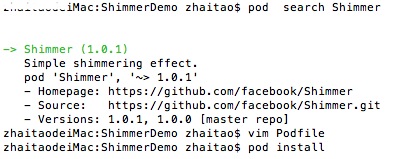
  1. 命令行里运行pod search Shimmer

  1. 将上面的pod 'Shimmer', '~> 1.0.1'copy,在你的工程下创建Podfile文件,并写入
1
2
3
platform :ios, '7.0'

pod 'Shimmer', '~> 1.0.1'
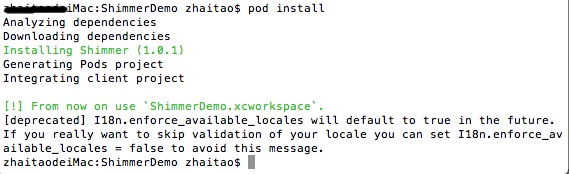
  1. 在命令行切换到你的工程目录,运行pod install

用法

创建一个FBShimmeringViewFBShimmeringLayer,添加您的内容。要开启闪烁,就设置shimmering属性为YES。
例子:

1
2
3
4
5
6
7
8
9
10
FBShimmeringView  * shimmeringView  =  [[ FBShimmeringView  alloc ]  initWithFrame : self.view.bounds ]; 
[ self.view addSubview : shimmeringView ];

UILabel * loadingLabel = [[ UILabel alloc ] initWithFrame : shimmeringView.bounds ];
loadingLabel.textAlignment = NSTextAlignmentCenter ;
loadingLabel.text = NSLocalizedString ( @"Shimmer" , nil );
shimmeringView.contentView = loadingLabel ;

/ /开始闪闪发光
shimmeringView.shimmering = YES ;

示例链接

示例

运行环境

  • Android2.3及以上版本
  • iOS 5.0及以上版本
  • OS X 10.7及以上版本
  • Windows 7及以上版本
  • Ubuntu 12.04及以上版本
  • Cocos2d-X v3.0rc

软件需求

  • Xcode 4.6
  • gcc 4.7
  • Visual Studio 2012
  • Python 2.7.5

创建新工程

切换到cocos的根目录

1
cocos new MyGame -p com.zoe.MyGame -l cpp -d ./MyProject
  • MyGame:指定工程名
  • - p com.zoe.MyGame:指定Android的包名
  • -l cpp:指定项目的语言,可用cpp或者lua
  • -d ./MyProject:指定存放目录

    成的项目的文件夹结构如下:

编译运行新工程

1
cocos run -s ./MyProject/MyGame -p ios
  • -s:指定工程目录,必须是绝对目录且有效的
  • -p:选着运行平台,可选项有ios,android,win32,mac,linux

环境要求

Mac OSX

Cocos2d-x

首先,要先下载好Cocos2d-x,并解压到你要放的位置。
打开Cocos2D-X文件夹你应该看到如下的情况:

JDK,SKD和NDK

下载Java,安装后,通过java -version进行验证

下载SDK,NDK解压到你存放的位置

Python和ant

Python作为Mac的一等公民,Macbook上是默认自带了的。
可以通过python --version验证:

1
2
->	python --version
Python 2.7.5

如果没有安装可以通过brew install python进行安装
如果brew也没有,可以到brew官网按照指定命令安装

之后我们还需要安装ant

1
brew install ant

通过ant -version进行验证

1
2
ant -version
Apache Ant(TM) version 1.9.3 compiled on December 23 2013

初始化环境

切换到./cocos2d-x的目录下(根据实际存放的位置)执行.\setup.py或者python setup.py运行设置脚本
根据提示分别填写NSK、SDK、ant的路径(根据实际存放位置,ant可以通过which ant命令查看位置)


最后,执行下面的命令完成设置

1
source ~/.bash_profile

编译

切换到cocos2d-x的build目录下
执行下面命令

1
python android-build.py -p 10 cpp-test